Moving from QuickBooks to NetSuite
How much history to bring, mapping the chart of accounts, open AR and AP, inventory, and picking a cutover date.
What to bring over, what to leave in QuickBooks, and how to pick a cutover date you won’t regret.
Most companies moving off QuickBooks spend their time picking NetSuite and very little time planning what the data looks like on day one. That’s backwards. The software decision is mostly made for you by the time you outgrow QuickBooks. The data decisions are where a go-live either closes clean or leaves your controller reconciling two systems for six months.
This is how we’d walk through it with you.
Opening balances or full history
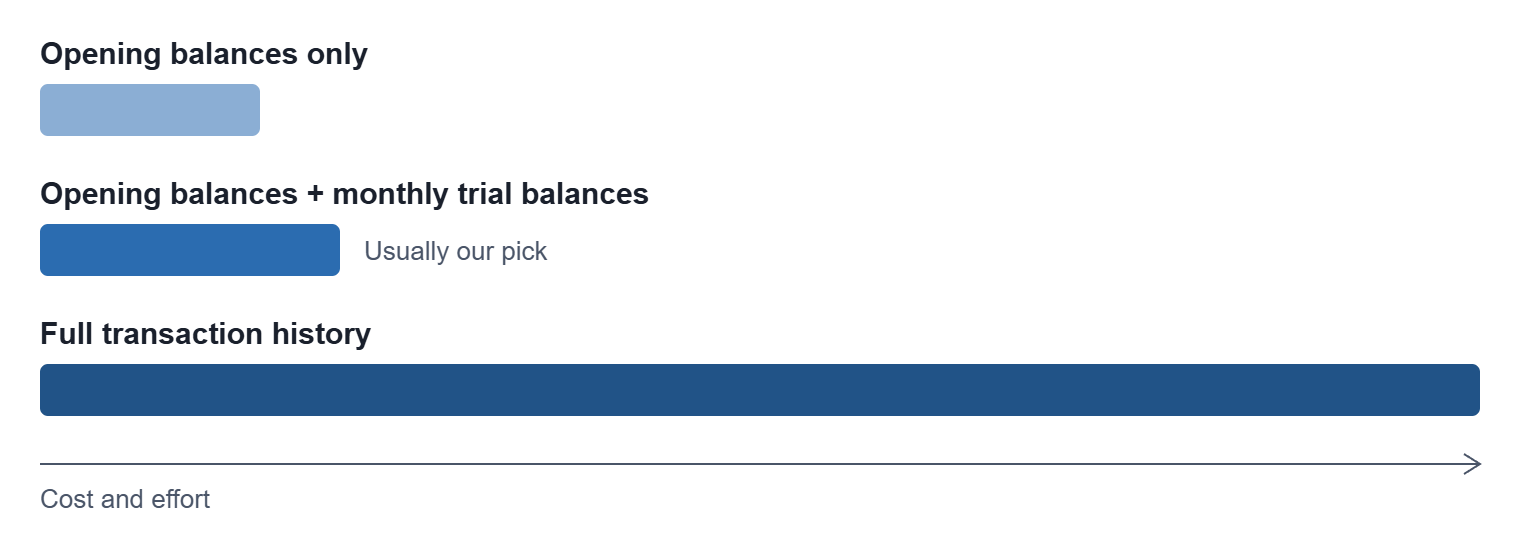
This is the first call to make and it drives everything else. There are really three options:
- Opening balances only. One JE per subsidiary as of the cutover date, open AR and AP loaded as open transactions, and inventory loaded at cost. QuickBooks stays around read-only for anything older.
- Opening balances plus monthly trial balances. Same as above, but you also load a summary JE for each prior month of the current year, sometimes the prior year too. You get comparative financials and budget vs actual in NetSuite without dragging in every transaction.
- Full transaction history. Every invoice, bill and payment. It sounds safest, but it’s the most expensive by far and rarely worth it. QuickBooks data usually has years of cleanup nobody wants to carry forward, and every old transaction has to tie to an item, customer and account that also has to exist in NetSuite.
If you go with monthly trial balances, check that each month’s summary JE nets to zero before you import it. One unbalanced month throws off every month after it.
For most companies we’d go with the second one. You get year-over-year reporting on day one and your team isn’t spending weeks mapping transactions from 2019.
Chart of accounts
Don’t just copy the QuickBooks chart of accounts. It’s usually grown sideways over the years, with accounts added for one vendor or one project, and a lot of them are really trying to do the job NetSuite handles with segments.
QuickBooks has Class and Location. NetSuite has department, class and location, plus custom segments if you need them. If you have income accounts like “Sales – Retail” and “Sales – Wholesale,” that’s probably one income account and a class. Cutting those down before go-live makes the chart easier to read and makes your reports far more flexible, since you can slice by segment instead of adding more accounts.
Map your QuickBooks classes and locations the same way. Decide which ones become NetSuite classes, which become locations and which become departments, and set them all up before anything loads. Transactions carry them, so a history JE or an open invoice can’t load until its class and location exist in NetSuite. If you’re running OneWorld, every customer, vendor, item and JE also belongs to a subsidiary, so the subsidiary goes on the mapping sheet too.
Accounts with no balance and no activity in the periods you’re bringing over don’t need to be mapped at all. Mark them as not coming over and move on. It shrinks the mapping sheet more than you’d expect.
Build a mapping sheet with the QuickBooks account in one column and the NetSuite account and segment in the next. Every balance you load and every summary JE goes through that sheet, so it’s the thing to get right first.
Here’s part of one from a real conversion, with the bank, lender and company names changed and the two sales lines added to show the class split. The four related-party payables in QuickBooks all land in one NetSuite account, and the two sales accounts become one income account with a class.
| QuickBooks account | NetSuite number | NetSuite name |
|---|---|---|
| Local Bank – Operating | 11000225 | Local Bank – Operating |
| Accounts Receivable | 12000000 | Accounts Receivable |
| Accounts Receivable – Other | 12000001 | Acc Receivable/Related Party |
| Undeposited Funds | 14000012 | Undeposited Funds |
| Accumulated Depreciation | 14001004 | Accumulated Depreciation |
| Building | 15000101 | Land and Building |
| Building Improvements | 15000104 | Building Improvements |
| CIP | 15000200 | Construction in Progress |
| Machinery and Equipment | 15000600 | Machinery & Equipment |
| Accounts Payable | 20000000 | Accounts Payable |
| Accounts Payable – Company A | 20000002 | Accounts Payable – Related Party |
| Accounts Payable – Company B | 20000002 | Accounts Payable – Related Party |
| Accounts Payable – Company C | 20000002 | Accounts Payable – Related Party |
| AP – Company D | 20000002 | Accounts Payable – Related Party |
| Equipment Capital Lease | 28000750 | Equipment Capital Lease |
| Local Bank – Loan | 28000755 | Local Bank – Loan |
| Equipment Loan | 28000760 | Equipment Loan |
| Members Contribution | 30000400 | Additional Paid in Capital |
| Members Equity | 30000000 | Equity |
| Sales – Retail | 40000000 | Sales, class Retail |
| Sales – Wholesale | 40000000 | Sales, class Wholesale |
| Rental Income | 40000010 | Rental Income |
| Bank Service Charge | 51002601 | Bank Services |
| Interest Expense | 51003000 | Interest Expense |
| Professional Fees | 51002001 | Professional Fees |
| Taxes, License, and Fees | 51002200 | Taxes, Licenses & Dues |
| Income – Other | 51002950 | Other Income |
Customers, vendors and items
These come over through the CSV import at Setup > Import/Export > Import CSV Records. We put together a free workbook of import templates with tabs for customers, vendors and items, plus mapping tabs for accounts, subsidiaries, sales reps, terms, price levels, tax codes and units of measure. A few things that trip people up:
- Clean the lists before you export. Inactive customers and vendors with no open balance and no activity in a couple of years can usually stay behind. Merge duplicates in QuickBooks, not after they’re in NetSuite. When you merge two customers or vendors in QuickBooks, it moves all of the duplicate’s transactions over to the one you keep. Then when somebody goes back to QuickBooks later for an old invoice or bill, the whole history is under one name, the same name they know from NetSuite. The merge can’t be undone, and a customer with sub-customers or projects has to have those cleared up first.
- If NetSuite already has other subsidiaries, check whether a vendor or customer already exists there before you import it. Plenty of vendors are shared. Add the new subsidiary to the existing record instead of creating a second one.
- Bring the 1099 flag and tax ID over with the vendor import. They only have to be right before you run 1099s, but it’s a lot easier to load them now than to chase them down in January.
- The chart of accounts has to be mapped and set up in NetSuite first. Customers and vendors carry an AR or AP account, and every item carries income, COGS and asset or expense accounts, so nothing else imports cleanly until the accounts exist.
- Subsidiaries, sales reps, customer terms, price levels, sales tax codes and units of measure each need their own mapping too, same as the chart of accounts. The names in QuickBooks don’t always match what you set up in NetSuite, so add a tab to the mapping sheet for each one. If you’re on OneWorld, every customer, vendor and item needs a subsidiary, and one QuickBooks file usually maps to one subsidiary. All of these have to exist in NetSuite before you import, or the import will fail or skip those fields.
- Sales reps in QuickBooks are just initials on a list. In NetSuite the sales rep on a customer or an invoice is an employee record with the sales rep box checked. Load those employees before customers and open invoices, or the rep field comes over blank.
- Units of measure need to be set up before items. QuickBooks keeps U/M simple. NetSuite uses unit types with a base unit and conversion rates, like each, case of 12 and pallet. If you buy by the case and sell by the each, get the conversions right before items load or every quantity after that is off.
- Load order matters. Vendors go before items, since items carry the preferred vendor and vendor cost. Items go before open POs, SOs and inventory. Customers go before open invoices.
- Items are where most of the rework happens. QuickBooks lets you get away with loose item setup. NetSuite wants each item’s type (inventory, non-inventory, service, assembly, kit) decided up front, with the income, COGS and asset accounts set on the item. Changing an item type after transactions hit it isn’t really an option.
- Give every import an external ID that names the load, like “Initial Inventory Count 9-2025.” If a load goes wrong, you can find everything it created with one search and back it out.
Open transactions
Before you export anything, run the AR aging and AP aging in QuickBooks as of the cutover date and tie each one to its balance on the QuickBooks trial balance. If the aging doesn’t match the TB, the open invoices and bills you load won’t match your opening balances either. It’s usually a JE posted straight to AR or AP, or an unapplied payment or credit. Clean it up in QuickBooks first. If you sell to consumers, expect a long tail of small unapplied payments, refunds and credit memos on the AR aging. Apply what matches, write off what’s too small to chase, and decide what’s left before it comes over.
Open AR and open AP should come over as real invoices and bills, not as a lump balance. Your team needs to apply payments against them and your customers are going to pay the invoice number they have, not a balance forward.
The usual approach is one line per open invoice or bill, with the original number and date, the open amount, and a conversion item that posts to your AR or AP clearing account. The offset side comes out of your opening balance JE so nothing gets counted twice.
Any JE line that hits AR, AP or an intercompany account needs a customer or vendor on it. NetSuite will save the JE without one, and that’s the problem. The balance shows up on the aging as No Customer or No Vendor, with nothing to apply a payment against, and it’s a pain to clean up later. For intercompany lines, that’s the intercompany customer or vendor for the other subsidiary. For AR and AP lines on the opening balance JE, set up a customer and a vendor with a name like “Opening Balance” and use those. Whatever’s left on them shows up in your agings, which is useful. If it isn’t zero after everything’s applied, something didn’t come over right. Customer credits and unapplied payments come over the same way as open credits, so they’re there to apply when the customer’s next invoice comes due.
Open POs and open SOs are different. They have to come over with the actual items and the quantities still open, not a conversion item, since you’ll be receiving and fulfilling against them in NetSuite. That’s one more reason to get the item import done first.
Watch sales tax on the open invoices. The open amount coming from QuickBooks already includes any tax the customer was charged, so the conversion line goes on with a non-taxable tax code. Otherwise NetSuite adds tax on top of it and your AR won’t tie. The sales tax you owe but haven’t paid yet comes over in the opening balance JE like any other liability.
Inventory
Do the inventory rec in QuickBooks first, before you export anything. Run the inventory valuation summary as of the cutover date and tie it to the inventory asset account on the balance sheet. If they don’t match, it’s almost always items with negative quantity or a stale average cost. Fix those in QuickBooks so the quantities and costs you export are ones you trust.
Your item list may not live in QuickBooks, either. For a lot of companies selling online, the real item master is the e-commerce platform, with the variants, UPCs and descriptions QuickBooks never had. Pull items from there, and include archived products that still have stock. If you’re loading quantities from a physical count instead of QuickBooks, match the count to items by UPC before you load anything. There will be counted SKUs with no item record, and they need to be set up first or the adjustment leaves them out.
Then load items, and bring in quantity on hand with an inventory adjustment dated the cutover date, at your QuickBooks average cost, by location. If you track bins, lots or serial numbers, that detail goes on the adjustment too. The adjustment can be imported with CSV, with one row for each serial or lot number under the item line, so you don’t have to key them in.
Watch for items that are inactive in QuickBooks, or archived on your website, but still have quantity on hand. They drop out of most item lists and exports, and they’re usually why the count doesn’t tie. Pull them into their own list and decide whether they come over as active items or get written off before cutover.
Point the adjustment account at an opening inventory clearing account, not COGS. The adjustment debits inventory and credits that clearing account. Your opening balance JE then leaves inventory out and debits the same clearing account instead, so it nets to zero and inventory isn’t counted twice. If the clearing account isn’t zero after both are posted, something didn’t come over right.
Sometimes item-level inventory isn’t worth bringing over at the start, maybe the QuickBooks quantities are too far off to trust, or inventory will be counted and set up fresh after go-live. In that case the inventory accounts can come over in the opening balance JE like any other balance. The GL will tie to QuickBooks, but the NetSuite inventory valuation report won’t, since there are no item quantities behind the balance. That’s ok as long as everybody knows it going in and there’s a plan and a date for the count that brings them together.
Open bank items
The bank balance you load is the book balance from QuickBooks, not the bank statement balance. The difference is checks that haven’t cleared and deposits in transit, and those have to come over as individual transactions or your first bank rec in NetSuite won’t work.
Pull the uncleared items from your last QuickBooks bank rec. Load each one into NetSuite as its own check or deposit with the original date, number and amount, posting against the bank account with the offset to a bank clearing account. Then the opening balance JE puts the statement balance in the bank account and the uncleared items in the clearing account, so the book balance ties and the clearing account nets to zero.
When the next statement comes in, you reconcile in NetSuite starting from the last statement balance, and the outstanding checks and deposits are sitting there ready to clear. Do this for every bank and credit card account.
Intercompany balances
If you’re bringing more than one QuickBooks company into NetSuite, those companies become subsidiaries and the due to and due from balances between them become intercompany. Tie the pairs in QuickBooks first, decide which related companies are actually coming in as subsidiaries, and load the open balances against intercompany customers and vendors with the offset to an intercompany clearing account. We cover all of it in Intercompany balances when moving from QuickBooks to NetSuite.
Fixed assets
The opening balance JE brings over cost and accumulated depreciation by account, but that’s not the same as bringing over your fixed assets. Somebody still needs the asset register behind those balances, and depreciation has to keep running after go-live.
You’ve got two choices. Keep the depreciation schedule where it lives now, in a spreadsheet or your CPA’s software, and book a monthly depreciation JE in NetSuite. Or load each asset into the NetSuite Fixed Assets module with its cost, in-service date, method, life and depreciation to date, and let NetSuite run it. Either way, tie the register to the GL before cutover. If cost or accumulated depreciation by account doesn’t match the register, figure that out in QuickBooks first. Reclasses between asset accounts after year-end are a common reason.
Payroll that stays outside NetSuite
Plenty of companies keep running payroll in QuickBooks, or in a payroll service, after the GL moves. That’s fine, but payroll then has to come into NetSuite every pay period or every month as a summary JE.
Map each payroll item to a NetSuite account the same way you mapped the chart of accounts. Wages, each tax, each deduction and each employer contribution. We build this as another small Power Query model, part of LedgerReady. It takes the payroll GL or payroll summary report, runs it through the payroll mapping and produces an import-ready JE, with a check that the period’s debits and credits balance before anything gets imported.
Build the opening balance JE last
By the time you get to the opening balance JE, a lot of your balances are already in NetSuite. Open AR and AP came in as invoices and bills, inventory came in on the adjustment, bank items came in as checks and deposits, and intercompany came in against the intercompany customers and vendors. So the opening balance JE is really the difference. For each account, it’s the QuickBooks balance minus whatever the other loads already put there. Build it last, and build it from a NetSuite trial balance run after everything else is in, not from the QuickBooks TB alone. Before you import it, check that it balances.
Picking the cutover date
Month-end at a minimum. Quarter-end is better. Year-end is the cleanest because your prior year closes entirely in QuickBooks and NetSuite starts fresh.
If you’re going live mid-year, think about 1099s now. NetSuite only reports payments made in NetSuite, so either load year-to-date vendor payments as history or plan to combine a QuickBooks report and a NetSuite report in January. Same idea for payroll if it’s coming along.
Make sure QuickBooks is really closed for the month before you load it. If anybody posts back into a closed month after you pull the trial balance, the next month’s beginning balance won’t match the ending balance you loaded. Before each load, check that the cutover month’s ending balances equal the next month’s beginning balances in QuickBooks, account by account. Watch the year-end entries especially: closing to retained earnings, distributions, and any reclass your CPA makes after the fact. Close the period in QuickBooks with a closing date password so nothing sneaks in.
Pick the day entry moves to NetSuite and hold to it. It’s tempting to let people start entering expense reports or a few bills in NetSuite early. Every one of those is a transaction that’s in NetSuite and not in QuickBooks, or in both, or coded differently in each, and each one shows up as a difference you have to track down at final cutover. If something has to go into NetSuite early, keep a list.
Also plan on a short overlap. Your team keeps working in QuickBooks through the cutover month while the initial load gets tied out in NetSuite. Then the final balances go in once QuickBooks is closed for the month.
Tie it out twice: initial load and final cutover
Balancing happens twice. The initial load is a full dress rehearsal as of the last month QuickBooks has closed, and it’s where the mapping problems show up. The final cutover brings over only what changed once QuickBooks closes the cutover month, and it should go a lot faster. Both passes get checked the same way: the NetSuite trial balance against QuickBooks by account and by month, plus the agings, inventory, bank and intercompany, and every clearing account at zero. The full walkthrough, including the Power Query model we use, is in Tying out a QuickBooks to NetSuite migration.
Keep QuickBooks read-only for at least the next audit or tax filing. Somebody is going to ask for an old invoice.
Want to talk?
If you’re planning a move off QuickBooks, or you’re partway through one and the balances won’t tie, send us where you are and your target go-live date. We’ll help you decide how much history to bring and what the cutover should look like. Book a free hour.
Author: Renee Chandler, Fourth Wave Consulting. NetSuite accounting and finance.