
The NetSuite AI Connector Service Companion is live — 100 prompts, 7 categories, and it’s worth installing today
The NetSuite AI Connector Service Companion is live Last verified September 29, 2026, against Oracle’s NetSuite help docs. The NetSuite AI Connector Service Companion is a free, Oracle-managed SuiteApp that adds a library of 100 ready-to-run prompts for Claude, ChatGPT and other AI clients connected to NetSuite. Install it from the SuiteApps tab by searching…
The NetSuite AI Connector Service Companion is live

Last verified September 29, 2026, against Oracle’s NetSuite help docs.
The NetSuite AI Connector Service Companion is a free, Oracle-managed SuiteApp that adds a library of 100 ready-to-run prompts for Claude, ChatGPT and other AI clients connected to NetSuite. Install it from the SuiteApps tab by searching NetSuite AI Connector Service Companion (Oracle’s install steps). You need three things first: the NetSuite AI Connector Service connected to your AI client, the MCP Standard Tools SuiteApp installed, and a non-Administrator role with the MCP tool permissions. Server SuiteScript, REST Web Services and OAuth 2.0 have to be enabled.
If you’ve got the MCP Standard Tools SuiteApp working against a NetSuite account and you’ve been writing your own prompts from scratch, stop. Oracle quietly released a managed SuiteApp called the NetSuite AI Connector Service Companion that ships a curated library of 100 prompts you can copy, run, or fork into your own custom records. I spent some time digging through the official 2026.1 documentation (April 22, 2026) and the live Suitelet, and it’s a genuinely useful piece of work.
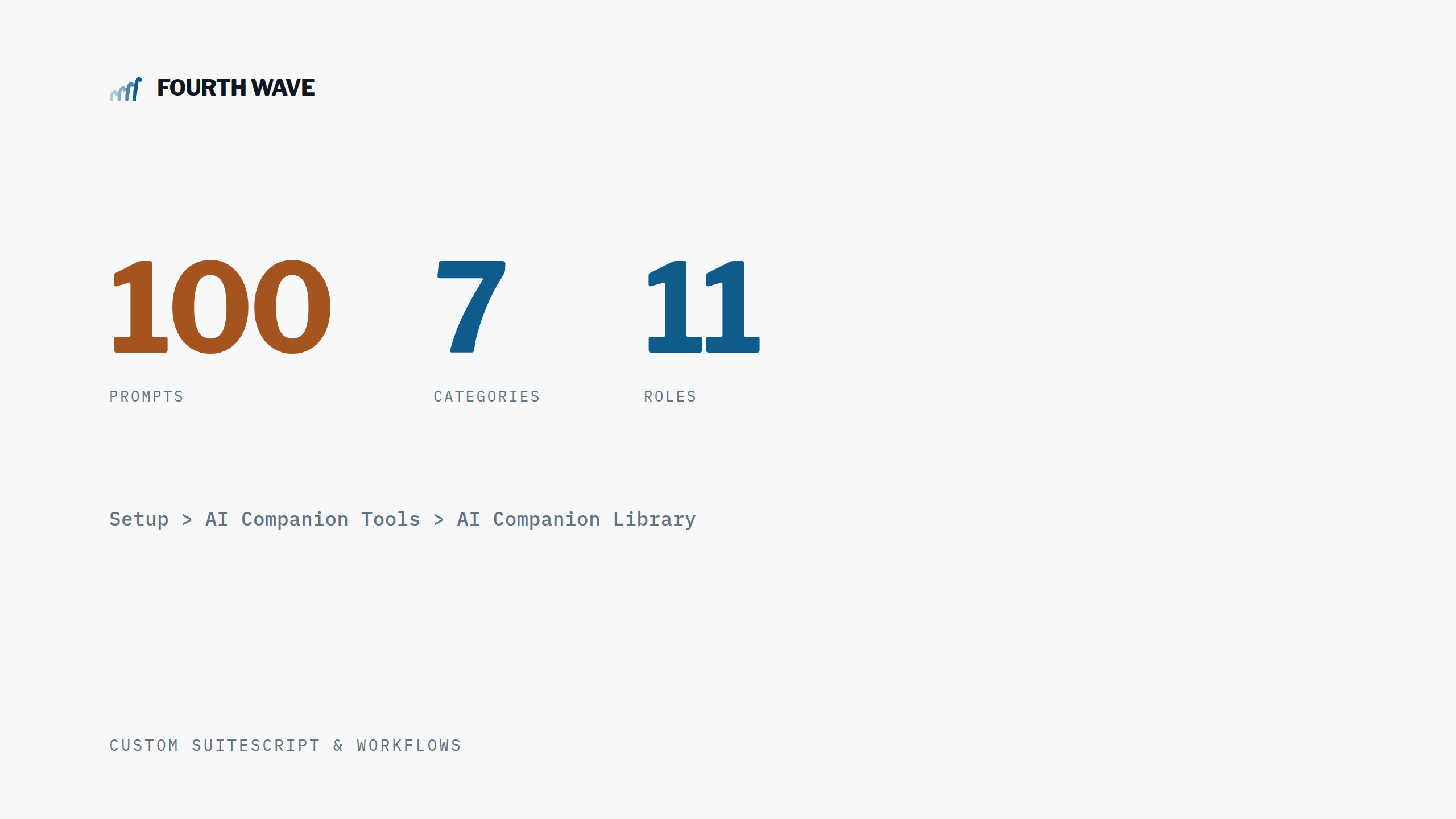
The setup is simple. Install the SuiteApp from the SuiteApp Marketplace, then go to Setup > AI Companion Tools > AI Companion Library. You land on the Suitelet shown above — search, category filter, industry filter, and role filter across the top. Every prompt has three actions: Copy (grab the text), Use Prompt (opens directly in a connected AI client), and Customize (edits the underlying AI prompt custom record so your tweaks persist). There’s also an optional SKILL.md file (the netsuite-ai-connector-instructions skill) you can pull from the NetSuite SuiteCloud SDK GitHub repo and upload to your AI client session for shared context — this makes the prompts behave more predictably.
The 100 prompts break down across seven categories. Financial is the largest by far — period narratives, profitability deep dives, YoY income statement comparisons, A/R aging analyses sliced six different ways, working capital analysis with full DSO/DIO/DPO/CCC modeling, vendor bill fraud detection across 8 patterns, and anomaly detection. Visualization has a handful of dashboard prompts including a 5-year fixed asset depreciation forecast that programmatically parses Balance Sheet JSON and uses ns_getRecordTypeMetadata to introspect FAM Asset structure. Order to Cash covers customer/SO/invoice creation, billing schedules, and four flavors of customer statements. Procure to Pay has 15 prompts for vendor setup, PO/bill workflows, and ACH/check/wire payment runs with multiple template variants. Item Configuration (just one prompt, but a thorough one). Record to Report for journals and intercompany journals with autobalance. And System Administration has 22 audit-style prompts — login anomaly detection, segregation-of-duties conflicts, SuiteScript inventory, saved search performance review, role permission matrices.
A couple of things worth knowing before you install. The Companion is a managed SuiteApp, so it auto-updates — if you customize a prompt, save it as your own version using the Customize action, don’t depend on the original. Tool visibility in your AI client depends on your role’s MCP tool permissions, and Oracle ships two optional roles to make this easier: AI Companion Controller (financial controller-level write access) and AI Companion View Only (read-only — no REST permission, so reports/saved searches/SuiteQL work but record CRUD doesn’t).
Worth 30 minutes to install and browse. Even if you don’t use the prompts as-is, the Customize flow makes them a solid starting template.
If you’ve installed it and the prompts come back empty or the tools don’t show up in your AI client, it’s usually the role. We’ll look at your MCP roles and permissions with you and get the Companion prompts running in your account. Book a free hour.